
What a session looks like
From your first question to the process map in your browser, step by step. You chat, your agent does the work, and the browser shows the results.
Once glasstarn is installed, everything starts with a chat. You do not open glasstarn yourself, and you do not need to learn any commands. This page walks through a typical first session so you know what to expect.
1. You ask a question
Section titled “1. You ask a question”Put your export in a folder, open your AI app on that folder (start a new project or chat and pick the folder), and ask about the process in your own words. For example:
Our invoices take too long to get paid. Can you find out why?You can also attach the file to a chat instead, but a folder keeps the export, the results and your agent’s work together, so it is easier to come back to.
You can also type /glasstarn first in apps that support it, but it is not needed.
2. Your agent starts, or asks what it needs
Section titled “2. Your agent starts, or asks what it needs”If the folder already has an export, your agent starts straight away and asks its questions at the end of its first answer. If not, it asks a few short questions first:
- What are you trying to find out? Faster payment, fewer manual steps, getting ready for an agent, or checking against a policy.
- Is there an export? It asks which system the work lives in and tells you exactly what to export, or writes a short request you can send to the system’s admin. See Don’t know what to export?.
3. Your agent reads the file
Section titled “3. Your agent reads the file”glasstarn reads the export on your computer and works out which column is the item, which is the step and which is the time. Your agent tells you what it used, and you can correct it at any point.
If something in the data could mean two things, such as a date that can be read two ways, your agent asks you. Nothing is left out without your okay. See Data checks.
4. You get a first read in the chat
Section titled “4. You get a first read in the chat”A few moments later, your agent gives you a short summary:
- one sentence on what stands out
- the main findings, with their numbers
- what is working well
- two or three questions worth asking next
Every number comes from glasstarn, so you get the same numbers if you ask again tomorrow.
5. The browser opens
Section titled “5. The browser opens”Your agent opens the results in your browser by itself and leads its answer with the link. A new tab opens with the project. The address starts with http://127.0.0.1. The page is served from your computer and is not exposed to other computers on your network.
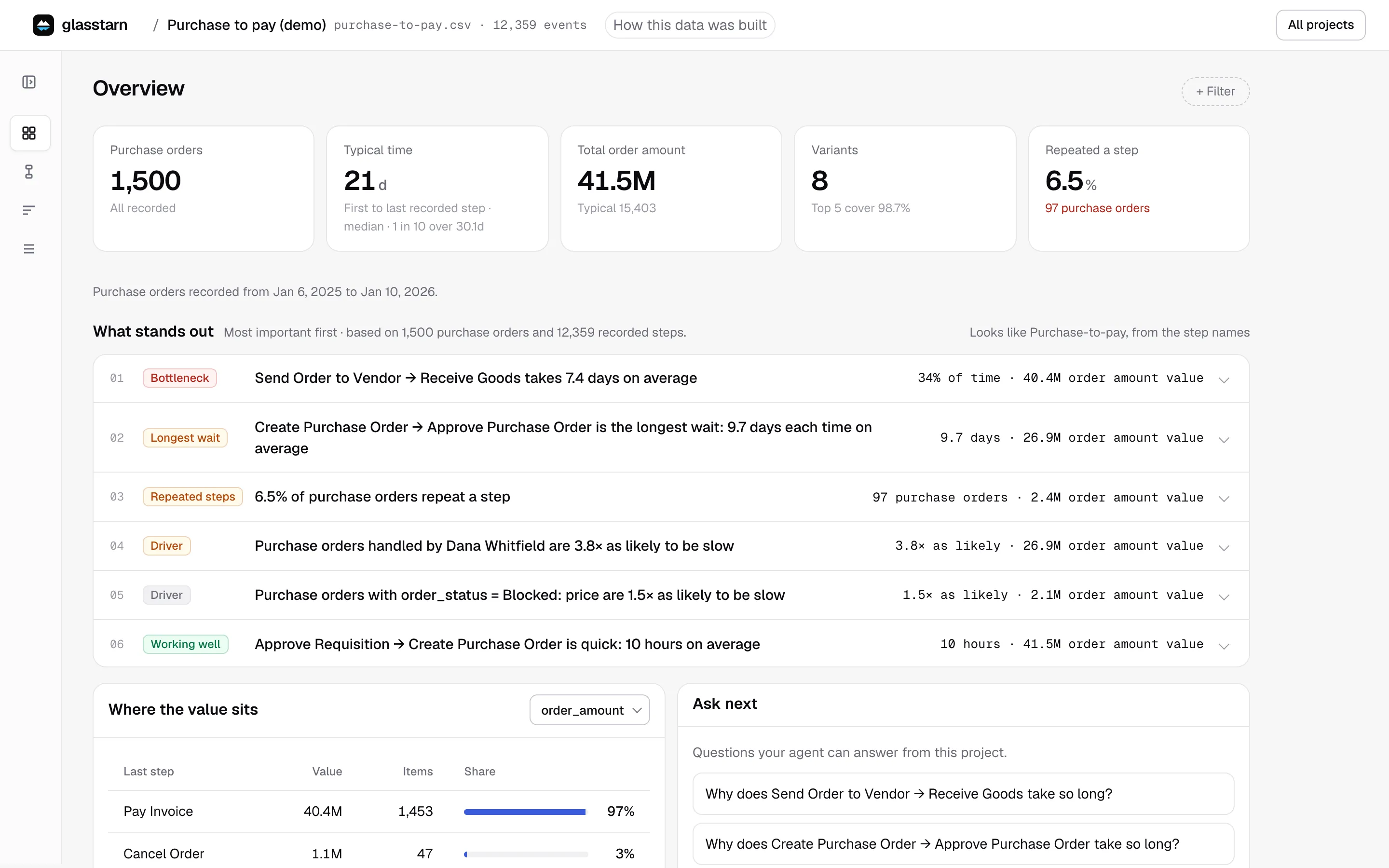
The browser view opens on the Overview. From there you can:
- open a finding to see the items behind it
- look at the Process map and click any step
- time any part of the process with Measure, on the Process page
- filter to one region, vendor or time period
A Conformance page appears once your agent has checked the work against an SOP. Advice on what to change comes in the chat, not on a page.
The browser view is optional. You can do everything by chatting, and use the browser only when you want to look for yourself. See Overview for a tour of each page.
6. You keep asking
Section titled “6. You keep asking”Go back to the chat and keep going:
Is it the same for every region?What do the slowest invoices have in common?Which steps could we remove or simplify?Which steps could an agent take over?There is one page per project. When your agent saves a new answer, that same page updates without a reload, and your agent says so instead of giving you a new link. Ask to see something, such as “Show me the three main variants”, and the page moves there and puts on the filter for you. If you closed the tab, your next question opens it again on the same view, with the same filters.
7. You come back later
Section titled “7. You come back later”Everything is saved in a glasstarn folder inside your folder. Close the app, and come back tomorrow or next month. Open the same folder in your AI app and say:
Let's continue.Your agent picks up the same project, says so (“Continuing Invoice review”), runs the analysis again and opens the page. If you checked against an SOP before, it tells you which one and when. Say “start fresh” if you want a new project instead. When you have a newer export, put it in the same folder and ask your agent to refresh the project.
Who does what
Section titled “Who does what”| You | Your agent | glasstarn |
|---|---|---|
| Ask the question | Asks what it needs, explains the results | Reads the file on your computer |
| Puts the export in a folder, or forwards the request | Writes the export request | Works out every number |
| Answer questions about the data | Suggests what to look at next | Draws the map and the findings |
| Decide what to change | Suggests changes, with reasons | Keeps everything in the project |